Backups, Recovery, and Version Control
The syllabus-core ideas are the purpose of backup and archive, the need for sensible version control, and clear naming conventions. The detailed Git/GitHub commands, branches, remote-hosting workflow and deployment recovery in this note are optional enrichment. They are useful for student projects and real coding work, but should not be presented as tools guaranteed to be available in Paper 2.
The goal is not to memorise Git commands. The goal is to understand how to avoid losing work, how to return to a known-good version, and how to recover data separately from code.
In Paper 2, always follow the examination environment rules first. If Git, cloud storage, or external backup tools are not available or not allowed, use only the approved saving and checkpoint methods in that environment.
Why This Matters
A project can fail for two different reasons:
The program no longer works.
The work or data is lost.
These are related, but they are not the same problem.
A student may fix broken code but still lose database records. Another student may restore an old database but still have broken Python code. Good project habits protect both.
Beginner Mental Model
Programming work has two main risks:
Risk 1: the code may break.
Risk 2: the files or data may be lost.
Version control helps with the first risk by keeping a history of code changes.
Backups help with the second risk by keeping recoverable copies of important files and data.
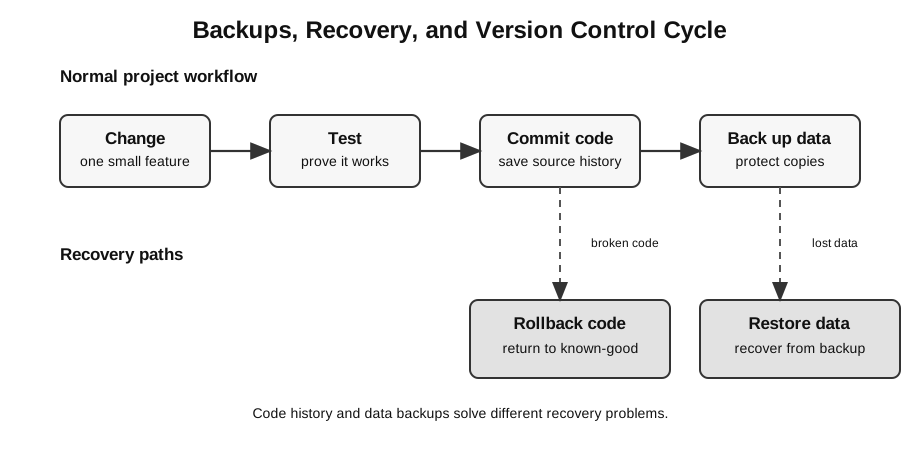
Figure: Normal work moves through small changes, tests, commits, and backups; recovery then separates broken-code rollback from lost-data restore.
A useful beginner rule is:
Version control protects source history.
Backups protect recoverable copies.
Testing proves that a recovered version works.
Exam Habit, Project Habit, Professional Habit
Do not confuse these three settings.
| Setting | Suitable habit | What to avoid |
|---|---|---|
| lab exam | save required files carefully and make approved checkpoint copies if allowed | using tools not allowed by the exam environment |
| student project | use small commits, clear folders, and database/file backups | keeping only one copy called final |
| professional project | use version control, branches, remote repositories, automated backups, access control, and recovery procedures | assuming one tool solves all recovery problems |
For exam answers, use core syllabus terms first: testing, debugging, validation, file handling, database storage, backups, and recovery. Mention GitHub, commits, branches, rollback, or snapshots only if the question gives a suitable project scenario.
Version Control
Version control records changes to project files over time.
Git is a common version-control system. GitHub is a hosting service often used to store Git repositories online and collaborate with others.
| Term | Beginner meaning |
|---|---|
| repository | project folder with version history |
| commit | saved checkpoint of selected changes |
| commit message | short explanation of what changed |
| branch | separate line of development |
| remote | online copy of the repository, such as GitHub |
| push | send local commits to the remote |
| pull | bring remote changes to the local machine |
For beginners, the most important habit is this:
Make a small working change.
Test it.
Commit it with a clear message.
Do not wait until the whole project is finished before committing.
What Makes a Good Commit?
A good commit is a meaningful checkpoint. It should usually represent one clear change that has been tested.
Good examples:
Add login form validation
Fix missing image upload check
Create submissions table
Update project README with setup steps
Weak examples:
stuff
final final
changes
please work
A useful commit message should help a future student answer:
What changed here?
Why was this checkpoint worth saving?
Better commit habit:
| Weak habit | Better habit |
|---|---|
| commit once at the end | commit after each working feature |
| mix many unrelated changes | keep each commit focused |
| write vague messages | describe the actual change |
| commit untested code as final | test before committing a working checkpoint |
What Should Be Version-Controlled?
Git history is powerful, but it is not a complete backup strategy.
| Item | Usually suitable for Git? | Why |
|---|---|---|
| Python source code | yes | small text files, meaningful history |
| Markdown notes | yes | small text files, easy to compare |
| HTML/CSS templates | yes | source files for the project |
| configuration examples | yes, if they contain no secrets | helps others understand setup |
| generated cache files | usually no | can be recreated |
.env secrets | no | should not be exposed |
| large database files | usually no | history becomes large and hard to manage |
| uploaded user files | usually no | often data, not source code |
| private student data | no | privacy and access-control risk |
Important rule:
Version control is for source history.
Backups are for recoverable copies of important data and working files.
What Not To Put In Git
A beginner may think that putting everything into GitHub is safer. This is not true.
Do not commit sensitive or unnecessary files.
| Do not commit | Why it is a problem |
|---|---|
| passwords | exposes accounts |
| API keys | allows others to misuse a service |
.env files with secrets | may leak private configuration |
| private student records | privacy and ethical risk |
| personal identification data | may violate data protection expectations |
| large generated files | bloats the repository |
| local cache folders | can be recreated |
| temporary debug output | creates confusion and noise |
If a secret has already been committed, deleting it from the latest file is not always enough, because it may still exist in repository history. The safer response is to rotate or replace the secret and then clean the repository if needed.
File History Is Not the Same as Backup
A repository history is not the same as a full backup of the project system.
Example:
Git may store app.py, templates, and CSS.
It may not safely store the latest SQLite database, uploaded images, or private configuration.
This means:
Code rollback may recover broken code.
It may not recover lost user data.
A good project protects different things in different ways.
| What needs protection? | Suitable protection |
|---|---|
| source code | Git commits, remote repository |
| notes and documentation | Git commits, exported copies |
| SQLite database | database backup or export |
| uploaded files | file backup or managed storage backup |
| secrets/API keys | secure storage and rotation plan |
| final submission folder | final dry run and approved copy |
Database Backups
A database stores changing data. This makes it different from source code.
Example:
app.py changes when the developer edits code.
app.db changes when users submit forms or the app writes records.
If the database is important, it needs its own backup plan.
| Backup type | Beginner meaning | Example |
|---|---|---|
| file copy | copy the database file when the app is stopped | copy app.db to backups/app_2026-07-08.db |
| SQL export | save table structure and data as SQL text | export CREATE TABLE and INSERT statements |
| CSV export | save selected records as tabular text | export submissions to submissions_2026-07-08.csv |
| managed backup | hosting provider stores snapshots | cloud database daily backup |
For SQLite, copying a database while it is actively being written can produce an unsafe backup. A safer beginner habit is to stop the app first or use a proper export/backup method.
Database Backup Example
Suppose a Flask app uses this file:
library.dbBefore changing the database table structure, make a backup such as:
backups/library_2026-07-08_before_schema_change.dbA meaningful backup name should answer:
Which file was backed up?
When was it backed up?
Why was it backed up?
Weak backup names:
copy.db
old.db
final2.db
Better backup names:
library_2026-07-08_before_import.db
library_2026-07-08_after_test_records.db
submissions_2026-07-08_export.csv
Rollback Versus Restore
These two words are related but not identical.
| Word | Meaning |
|---|---|
| rollback | return code or system state to an earlier known-good version |
| restore | recover lost files or data from a backup |
Example:
Rollback:
The latest code change broke image uploads.
Return the code to the previous working commit.

Restore:
The database file was accidentally deleted.
Copy yesterday's database backup back into place.
Code rollback may not restore lost database records. Database restore may not fix broken code. Treat them as separate recovery tasks.
Important warning:
Rolling back app.py may fix a broken route.
It will not bring back rows that were deleted from app.db.
Known-Good Version
A known-good version is a version that has been tested and shown to work.
A file is not known-good just because it is older. It is known-good because there is evidence.
| Claim | Evidence |
|---|---|
| the route worked | browser loaded the route successfully |
| form submission worked | submitted value was received correctly |
| database insert worked | inserted row was selected back |
| display worked | page showed the expected records |
| final folder worked | app ran from the submitted folder only |
When recovering, look for the last version with evidence, not simply the last version with a reassuring file name.
Accidental Deletion
Accidental deletion is common in real projects.
Examples:
- deleting the wrong file;
- overwriting a working version with an older copy;
- committing generated output but not the source file;
- losing a local database during redeployment;
- deleting a folder while cleaning the project;
- replacing a correct submission folder with an incomplete copy.
Before deleting files, ask:
Can this file be regenerated?
Is it tracked in version control?
Is there a backup if it contains data?
Have I checked the path carefully?
If the file is source code and committed, version control may help recover it. If the file is user data and not backed up, version control may not help.
Before A Risky Change
Use this checklist before making a change that may break the project.
1. Check that the current version runs.
2. Commit or copy the working source files if allowed.
3. Back up important database or data files.
4. Write down what currently works.
5. Make one risky change at a time.
6. Test immediately after the change.
Risky changes include:
- changing database table structure;
- renaming files or folders;
- changing form field names;
- moving database files;
- changing routes or URLs;
- deleting old files;
- deploying to a different environment.
Safe Project Workflow
Use this cycle for student projects:
1. Start from a known working version.
2. Make one small change.
3. Test the changed feature.
4. Commit the working change.
5. Back up data before risky database or file operations.
6. Push or copy important work to another location.
7. Write down how to restore if something fails.
This is not only for professional developers. It is useful even for one student working alone.
Recovery Checklist
When something goes wrong, do not panic-edit many files at once. First identify what was lost or broken.
| Problem | First question | Useful evidence |
|---|---|---|
| code no longer works | which commit or copy last worked? | commit history, checkpoint folder, test result |
| file disappeared | was it tracked or backed up? | Git status, file history, backup folder |
| database lost rows | when was the last good backup? | backup timestamp, export file |
| deployment broke | did local version still work? | local test, deployment logs |
| secret was committed | can it be rotated? | repository history, service dashboard |
| wrong file submitted | what was the required filename? | task sheet, final checklist |
The practical recovery order is:
Stop making random changes.
Copy the current broken state if it contains important data.
Find the last known-good checkpoint.
Recover code, files, or data according to what failed.
Retest before continuing.
Copying the current broken state may sound strange, but it can be important. A broken project may still contain recent data, useful code, or evidence of what changed.
Worked Scenario 1: Broken Route And Deleted Database
Scenario:
A student builds a Flask project with a SQLite database.
The app works on Monday.
On Tuesday, the student changes the submission route and the app starts crashing.
While trying to fix it, the student deletes the database file.
Reasoning:
| Issue | Recovery approach |
|---|---|
| route code broke | inspect recent commits and roll back or compare with last working version |
| database file deleted | restore from database backup, not from code rollback unless database was intentionally backed up there |
| recent submissions missing | check whether a newer export or backup exists |
| uncertain current state | copy the whole project folder before further repair attempts |
Good conclusion:
Version control can recover the route code if it was committed.
It may not recover the latest database contents unless the database was separately backed up.
The student should separate code rollback from data restore.
Worked Scenario 2: The App Uses The Wrong Database
Scenario:
A Flask app is supposed to use data/library.db.
After moving files, the page shows an empty table.
The code has created a new empty library.db in the main folder.
Diagnosis:
| Check | Evidence | Meaning |
|---|---|---|
| print database path | app opens /task_folder/library.db | wrong database path |
inspect data/library.db | records are present | original data still exists |
inspect new library.db | no records | app created a new empty database |
| fix path | app opens data/library.db | correct file is used |
Recovery:
Do not overwrite the original data file.
Fix the database path first.
Then test insert and select again.
Back up the correct database before further changes.
This scenario shows why file management, database workflow, and recovery habits are connected.
How to Use This in Exam Answers
For H2 exam answers, use core syllabus terms first:
- testing;
- debugging;
- validation;
- verification;
- file handling;
- database storage;
- backups if the scenario gives data-loss risk.
Mention GitHub, commits, branches, rollback, or database snapshots only if:
- the question gives a project workflow scenario;
- you are explaining a real-world extension;
- you are writing a project habit note, not a core exam answer.
Avoid:
- saying “GitHub is the backup” without explaining what is actually stored;
- committing passwords, API keys, or
.envfiles; - assuming code history automatically backs up databases;
- overwriting the only copy of a broken-but-important project before diagnosis;
- restoring old data without checking what newer records will be lost;
- using vendor names when a syllabus concept answer is required.
Short Exam-Safe Phrases
If a question gives a file-loss or project-recovery scenario, useful answer phrases include:
The student should restore the database from a backup, then test that the required records can be retrieved.The student should return to the last known-good version of the code and retest the affected feature.The student should not overwrite the only remaining copy before diagnosing whether it contains useful data.Code history and database backups protect different things, so both may be needed.These phrases are safer than simply saying:
Use GitHub.Connect Back to Topics
- Lab Exam and Project Skills: file management, checkpoints, and final submission safety.
- Data Validation, Testing, and Debugging: known-good versions, regression testing, and systematic recovery.
- Databases and Data Management: database files, exports, persistence, backups, and restore risk.
- Exam Workflow and File Management: folder structure, file names, and final dry run.
- Web, Database, and Local Server Workflow: database paths, local-server checks, and integrated testing.
Final Takeaway
Protecting a project means protecting both code and data.
Use this reasoning pattern:
What changed?
What is the last known-good checkpoint?
Is the lost item source code, generated output, secret config, or user data?
Should I roll back code, restore data, or both?
How do I test that recovery worked?
A good recovery plan is not just “go back”. It says what to recover, where to recover it from, and how to prove the project works again.