Exam Workflow and File Management
Many practical-task errors are not caused by difficult code. They are caused by missed requirements, missing files, poor folder structure, wrong file paths, or rushed submission.
This note gives a repeatable workflow for keeping a practical task under control.
You can use this note even before you understand all the programming details. Its purpose is to keep the task visible and organised so technical errors are easier to find.
A common student story is:
The code worked on the student's computer, but the submitted folder did not run because the template, database, image, or data file was missing.That is not only a programming problem. It is a workflow and file-management problem.
Beginner Mental Model
A lab task is not just a coding task. It is a complete workflow:
task wording -> required files -> working folder -> small tests -> saved checkpoints -> submitted workA good solution must satisfy two conditions:
| Condition | Meaning |
|---|---|
| the program works | the code produces the required behaviour |
| the submission is complete | the marker receives all required files in the expected structure |
A program that works locally but depends on files outside the submitted folder may fail when marked.
First Pass Through the Question
Read the task once for the story, then a second time for requirements.
During the second pass, mark the task wording. A simple marking system is useful:
| Mark | Meaning | Example |
|---|---|---|
[I] | input | form field, file input, command-line value, starting data |
[P] | processing | calculation, validation, search, sort, query, update |
[O] | output | printed result, HTML page, table, chart, saved file |
[S] | storage | text file, SQLite database, MongoDB collection |
[V] | validation | required field, range, length, format, type |
[R] | supplied resource | .txt, .csv, .json, .db, starter .py, starter .ipynb, template, image |
[F] | file to submit | .py, .ipynb, .html, .css, .db, image, data file |
If the task has multiple parts, label them. Do not assume later parts are optional.
Requirement Mark-Up Example
Task sentence:
Create a web app that allows users to add a book title and author, stores the data in SQLite, and displays all saved books in a table. Submit app.py, templates/index.html, templates/books.html, static/style.css, and books.db.Marked-up version:
Create a web app that allows users to add [I] a book title and author,
stores [S] the data in SQLite,
and displays [O] all saved books in a table.
Submit [F] app.py, templates/index.html, templates/books.html, static/style.css, and books.db.
Extracted requirements:
| Category | Requirement |
|---|---|
| app type | Flask web app |
| inputs | book title, author |
| processing | add a new book record |
| storage | SQLite database |
| output | table of saved books |
| required files | app.py, templates/index.html, templates/books.html, static/style.css, books.db |
Now the task is no longer a paragraph. It is a checklist.
Before Coding: Make a File Checklist
Before writing code, create a short file checklist from the question.
Example:
| Required item | Created? | Tested? | Included for submission? |
|---|---|---|---|
app.py | yes/no | yes/no | yes/no |
templates/index.html | yes/no | yes/no | yes/no |
templates/books.html | yes/no | yes/no | yes/no |
static/style.css | yes/no | yes/no | yes/no |
books.db | yes/no | yes/no | yes/no |
This prevents a common mistake: completing the main code but forgetting a supporting file.
Working Folder Setup
A clean folder reduces path errors.
Example for a Flask and SQLite task:
task_folder/
  app.py
  library.db
  templates/
    index.html
    results.html
  static/
    style.css
  data/
    books.csv
Rules:
- keep files for the same task in one folder;
- use the exact file names required by the task;
- keep Flask templates inside
templates/; - keep CSS and images inside
static/if using Flask static files; - keep input data files in a predictable place, such as
data/, if the task allows it; - avoid spaces and unclear names in your own files unless the task requires them;
- do not create several confusing versions such as
app_final.py,app_final2.py, andapp_reallyfinal.pyunless checkpoint copies are explicitly allowed and clearly separated.
Submitted Folder Example
If the task requires a web app with a database and templates, the submitted folder may need to look like this:
submitted_folder/
  app.py
  library.db
  templates/
    index.html
    books.html
  static/
    style.css
Do not submit only app.py if the app depends on templates, CSS, images, data files, or a database.
Before submission, ask:
Can this project run using only the files inside the submitted folder?If the answer is no, the submission is probably incomplete.
Supplied-Resource Inspection
Before coding against a provided file, inspect the resource itself.
| Resource | First inspection action | Mistake this prevents |
|---|---|---|
| CSV file | read the header and first data row | using the wrong field order |
| JSON file | load and print the top-level type and one record | assuming a list when it is a dictionary, or guessing key names |
| SQLite database | list tables and run one simple SELECT | querying a table or column that does not exist |
starter .py file | run it once and identify the blanks to complete | rewriting useful provided code |
| starter notebook | run existing cells in order if allowed | breaking dependencies between cells |
| HTML template | check form name attributes | using the wrong Flask request.form key |
| image file | check file name, extension, and folder | broken image path in the submitted app |
In Jupyter Notebook tasks, make sure the required output is visible in the saved notebook. Code that works only after hidden manual steps may not give the marker enough evidence.
CSV Inspection Example
Suppose a supplied CSV file begins like this:
id,title,author,year
1,Dune,Frank Herbert,1965
2,The Hobbit,J. R. R. Tolkien,1937
A weak approach is to guess the column order from memory.
A stronger approach is:
import csv

with open("data/books.csv", newline="") as f:
    reader = csv.reader(f)
    header = next(reader, None)
    first_row = next(reader, None)

print(header)
print(first_row)
Expected inspection result:
['id', 'title', 'author', 'year']
['1', 'Dune', 'Frank Herbert', '1965']
This confirms the exact field order before you write the processing code. The None result also makes an empty or header-only file visible instead of crashing during inspection.
JSON Inspection Example
A JSON file may look like a list, but it may actually be a dictionary containing a list.
For example:
{
  "books": [
    {"title": "Dune", "year": 1965}
  ]
}
A safe first inspection is:
import json

with open("data/books.json") as f:
    data = json.load(f)

print(type(data))
if isinstance(data, dict):
    print(data.keys())
    books = data.get("books", [])
    print(books[0] if books else "no books")
This prevents code that wrongly assumes data[0] exists.
SQLite Inspection Example
Before writing queries against a supplied SQLite database, check the actual tables.
from pathlib import Path
import sqlite3

db_path = Path(__file__).resolve().parent / "library.db"
if not db_path.exists():
    raise FileNotFoundError(f"Expected supplied database at {db_path}")
con = sqlite3.connect(db_path)
rows = con.execute("SELECT name FROM sqlite_master WHERE type='table'").fetchall()
print(rows)
con.close()
After finding the table name, run one small query:
import sqlite3

con = sqlite3.connect("library.db")
rows = con.execute("SELECT * FROM Book LIMIT 3").fetchall()
print(rows)
con.close()
This prevents guessing table names such as Books, book, or library when the actual table is Book.
File Path Mental Model
A file path tells the program where to find something.
same folder as app.py:       library.db
inside templates folder:     templates/index.html
inside static folder:        static/style.css
inside data folder:          data/books.csv
Beginner mistake:
The file exists somewhere on the computer, so the program should find it.Better thinking:
The program starts from a working folder. My path must be correct from that folder.For example, if app.py is inside task_folder/ and the CSV file is inside task_folder/data/, this path is sensible:
open("data/books.csv")This path is risky in a submitted answer:
open("/Users/student/Desktop/books.csv")It may work on one computer but fail for the marker because the marker does not have the same desktop path.
Relative Paths and Working Directory
A relative path is interpreted from the current working directory, not from your memory of where the file is.
If a file cannot be found, check:
from pathlib import Path

print("Current working directory:", Path.cwd())
print("Expected file path:", Path("data/books.csv").resolve())
print("File exists:", Path("data/books.csv").exists())
This helps you distinguish between:
| Problem | Meaning |
|---|---|
| file is missing | the file was not copied or created |
| path is wrong | the file exists but the program is looking elsewhere |
| working folder is wrong | the program was run from a different folder |
Flask Folder Rules
For Flask tasks, some folder names have special meaning.
task_folder/
  app.py
  templates/
    index.html
  static/
    style.css
Common rules:
render_template("index.html")expectsindex.htmlinsidetemplates/;- static files such as CSS and images are normally placed inside
static/; - the name in the code must match the actual file name exactly;
books.html,book.html, andBooks.htmlmay be treated as different names depending on the system.
If Flask says a template is not found, check folder structure and spelling before rewriting the route.
Checkpoint Saves
Save whenever you reach a working state.
Suggested checkpoints:
| Checkpoint | What is working |
|---|---|
checkpoint_01_start | files created, app opens or script runs |
checkpoint_02_input | input collected correctly |
checkpoint_03_processing | calculation, validation, or query works |
checkpoint_04_output | required output is displayed or saved |
checkpoint_05_final | final tests passed and files ready |
In a restricted exam environment, you may not be able to use version control. You can still save named copies if allowed by exam instructions. Follow the actual examination rules first.
A checkpoint should be useful. It should answer:
What worked at this point?
What changed since the previous checkpoint?
Can I return to this version if the next change breaks the task?
What Counts as “Working”?
A checkpoint is useful only if you know what it proves.
| Claim | Quick proof |
|---|---|
| script runs | run it from the task folder without an error |
| form appears | open the page and see the input fields |
| form submits | print or display the received values |
| database stores data | insert a row and select it back |
| output works | compare browser/page output with expected result |
| notebook is ready | restart kernel if appropriate, run required cells, save visible output |
| submitted folder is complete | run or inspect the project using only the submitted folder |
Do not save a checkpoint named final until the required output has actually been checked.
Time Management Pattern
Use this pattern when you feel stuck:
If stuck for 5 minutes:
  identify the smallest failing part
  make a tiny test
  check the error message or output
  fix one thing
  retest
If a feature is not essential for earlier parts, consider moving on and returning later. A partly working solution with clear required files is usually better than an unfinished rewrite.
A useful exam habit is:
Do not spend all remaining time on one broken extension feature if the core required output is not yet safely working.Submission Safety Check
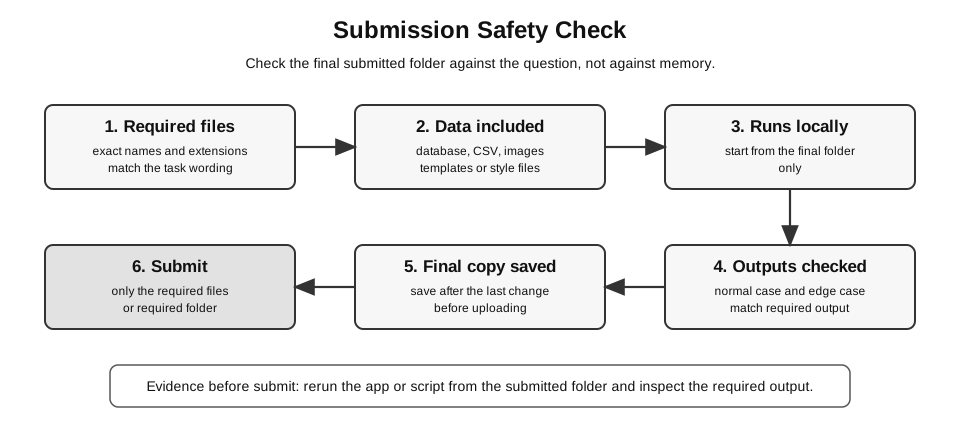
Caption: The submission safety check is an ordered final-folder routine: confirm required files and data, rerun from the submitted folder, check the required output, save the final copy, and submit only what the question asks for.
Before submission, check the files against the question, not against your memory.
| Check | Question to ask |
|---|---|
| required files | Are all named files present? |
| folder structure | Are templates, static files, databases, and data files in the expected places? |
| runnable app | Does the main script run from the submitted folder? |
| database | Is the correct database included if required? |
| output | Does the app produce the required output with test data? |
| naming | Are file names and extensions exactly correct? |
| final save | Did I save after the last change? |
| hidden dependencies | Does the work depend on files outside the submitted folder? |
| notebook output | If submitting .ipynb, is the required output visible after saving? |
Common File Problems
| Symptom | Likely cause | Check |
|---|---|---|
| Flask says template not found | file not in templates/ or name mismatch | folder and spelling |
| CSS does not load | file not in static/ or wrong url_for path | browser developer view or HTML source |
| image does not appear | image path or file name is wrong | folder, extension, case of file name |
| database is empty after running | app is using a different database path | print/check database path |
| submitted app fails elsewhere | missing data file, image, template, or database | copy the whole required folder |
| file opens in editor but app cannot read it | relative path is wrong | run from task folder |
| notebook answer disappears | output was not saved or cells were not run | reopen saved notebook and check visible output |
| wrong version submitted | several similar files exist | check timestamp, file name, and content |
Diagnosis Examples
Example 1: Template Not Found
Symptom:
jinja2.exceptions.TemplateNotFound: books.htmlReasoning:
| Check | Possible issue |
|---|---|
Is books.html inside templates/? | file may be in the main folder |
Is the name exactly books.html? | file may be called book.html or Books.html |
Does the route call render_template("books.html")? | code and file name may not match |
Good first fix: correct the folder or file name. Do not rewrite the whole Flask app.
Example 2: Database Looks Empty
Symptom:
The app says a record was saved, but DB Browser shows no new row.Possible diagnosis:
| Check | Meaning |
|---|---|
| print the database path in the app | confirms which .db file the app is writing to |
check whether commit() is called | insert may not be permanently saved |
inspect the same .db file | avoids looking at an old or duplicate database |
Useful debug code:
from pathlib import Path

print("Using database:", Path("library.db").resolve())
Example 3: Submitted App Fails on Another Computer
Symptom:
The app worked during practice, but fails when opened from the submitted folder.Possible causes:
| Cause | Why it happens |
|---|---|
| absolute path used | the marker does not have the same desktop folder |
| data file missing | only source code was submitted |
| template missing | templates/ folder was not included |
| database missing | app expected a local .db file not submitted |
| wrong version submitted | an older file was uploaded |
Best prevention: do a submission dry run from the final submitted folder only.
Submission Dry Run
Before final submission, pretend you are the marker opening your files.
1. Start from the submitted folder only.
2. Open the main file.
3. Run the program or local server.
4. Use one normal input.
5. Check the required output appears.
6. Check all required supporting files are present.
This catches hidden dependencies on files outside the submitted folder.
For a Flask app, a dry run should include:
1. Start the server from the submitted folder.
2. Open the required route in the browser.
3. Submit one normal form input.
4. Check the result page.
5. Check the database if storage is required.
6. Refresh or reopen the page to confirm stored data can still be retrieved.
For a notebook, a dry run should include:
1. Reopen the saved notebook.
2. Check that the required code cells are present.
3. Check that required outputs are visible.
4. Confirm that the file name matches the question.
5. Confirm that any required data files are included.
Final Routine
Use this short routine before submission:
1. Save all open files.
2. Close and rerun the main program or app from the task folder.
3. Test one normal case.
4. Test one boundary or abnormal case if relevant.
5. Check required output.
6. Check submitted file list.
7. Check folder structure.
8. Submit only the required files or folder.
The final check should be based on the task sheet, not on memory.
Last-Minute Priorities
Near the end of the task, prioritise marks that can still be secured.
| Situation | Sensible action |
|---|---|
| core app works but styling is unfinished | save, test, and submit the working app first |
| database works but display is incomplete | show at least clear retrieved output if possible |
| extension feature breaks the app | disable or remove only the risky new part if allowed |
| unsure which file is final | open and inspect the required file before submitting |
| no time for full testing | run one normal case and check required files |
A simple working submission is usually better than a more ambitious folder that cannot run.
Final Takeaway
Good file management makes coding easier to debug and safer to submit.
Use this reasoning pattern:
What does the question require?
Where should each file be?
Can the program find its files from the submitted folder?
What proves each part works?
Have I submitted the exact files requested?
Return to Lab Exam and Project Skills.