Browser Security Real-World Enrichment
This is optional enrichment. It helps you connect H2 Computing security ideas to browsers such as Chrome and Safari. It is not required for H2 exam answers unless a question gives a browser-security scenario.
The purpose is not to memorise browser settings. Product details change. The stable learning goal is to understand how a browser reduces risk when a user visits websites, downloads files, enters passwords, or installs extensions.
Beginner Mental Model
A browser is not just a display program. It is a controlled environment for running untrusted web content.
When you visit a website, the browser has to handle several risks at once:
- the site may be fake and trying to steal passwords;
- the page may try to download harmful software;
- the page may contain code that tries to escape its limits;
- the connection may not protect data in transit;
- an extension may ask for more access than it needs;
- tracking code may collect more data than the user expects.
Modern browsers reduce these risks using layers of protection. The browser should be understood as one part of defence in depth, not as a guarantee that every website, download, or extension is safe.
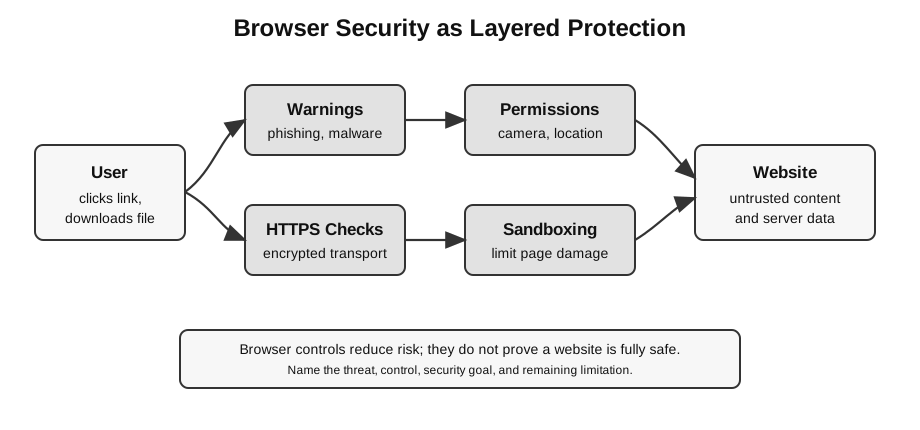
Caption: The controls surround the browser because they act in parallel at different boundaries: connection checks protect transport, permissions mediate sensors/data, sandboxing limits page code, and warnings flag risky content. They are not sequential processing stages. HTTPS does not prove honesty, warnings can be overridden, and permissions can be granted too broadly.
Threat to Control Map
| Threat or risk | Browser feature | H2 Computing idea | Important limitation |
|---|---|---|---|
| fake login page | unsafe-site or phishing warning | social engineering, authentication risk | a user may ignore the warning |
| malicious download | download warning or malware reputation check | malware prevention | new malware may not be recognised yet |
| harmful website code | sandboxing and site isolation | defence in depth, least privilege | browser bugs may still exist |
| password entered on plain HTTP page | HTTPS or insecure-connection warning | confidentiality, encryption | HTTPS protects transport, not honesty of the website |
| over-powerful extension | extension permissions and review | access control, least privilege | a user may grant risky permissions |
| cross-site tracking | privacy and tracking controls | privacy, ethical data use | privacy controls can change site behaviour |
| old security bug | automatic browser update | patching, vulnerability management | updates can be delayed or disabled |
This table is the main exam-safe idea: do not say “the browser makes the user safe.” Say which risk is reduced and what remains unsafe.
Browser Security Is Not the Same as Website Trust
A browser can check some technical and reputation signals, but it cannot perfectly know the user’s intention or every future action by a website. This is why the same browser may correctly warn about one dangerous site, yet still allow a new or previously unknown phishing page to load.
Use this distinction:
| Browser can help by… | Browser cannot guarantee that… |
|---|---|
| warning about known suspicious sites | every unsafe site is already known |
| showing HTTPS status | the website owner is honest |
| asking for camera or location permission | the user will make a safe decision |
| sandboxing web content | every browser bug is impossible |
Unsafe-Site and Download Warnings
Browsers may warn users before they visit websites known or suspected to be dangerous. The danger may be phishing, malware, unwanted software, or other deceptive behaviour.
Example:
User clicks a link in an email
Browser checks whether the destination is suspicious
Browser shows a warning before loading the page
User decides whether to go back or continue
This connects directly to syllabus ideas:
| Browser situation | Security concept |
|---|---|
| fake school login page | phishing and social engineering |
| downloaded program is blocked or warned about | malware risk |
| browser warns before the page loads | preventive control |
| user ignores the warning | human factor and residual risk |
Google Safe Browsing is one real-world example used by Chrome and other products to warn about dangerous sites and downloads. Chrome’s Enhanced Safe Browsing adds more real-time checking and deeper download checks, but it may share additional security-related information with Google. That creates a security-versus-privacy trade-off, which is useful for ethics discussion.
Sandboxing and Site Isolation
Web pages can run code, display media, use forms, and communicate with servers. That is powerful, so browsers try to limit what a page can do.
A sandbox is a restricted environment. If a page or script behaves maliciously, the browser tries to keep it away from the rest of the computer.
Site isolation is a stronger separation idea used by Chromium-based browsers. Pages from different websites can be placed into different operating-system processes. This makes it harder for a compromised or malicious page from one site to read data from another site.
Simple model:
Without strong isolation:
many sites share more browser state
one bug may expose data from another site

With stronger isolation:
site A runs in one restricted process
site B runs in another restricted process
a compromise in site A has less access to site B
Relate this to H2 terms:
| General security principle | Browser example |
|---|---|
| least privilege | a page should only have the access it needs |
| defence in depth | warnings, HTTPS, sandboxing, updates, and permissions work together |
| residual risk | no single control removes all risk |
| availability trade-off | extra isolation may use more memory or processing resources |
Why Layers Matter
Different browser protections act at different moments:
before visiting -> warning or reputation check
while loading -> HTTPS and certificate checks
while running page code -> sandboxing and site isolation
when a site asks for access -> permissions
after release of security fixes -> updates
This layered view helps beginners avoid saying that one feature, such as HTTPS, solves all browser security problems.
HTTPS and Insecure-Connection Warnings
HTTPS uses encryption to protect data between the browser and the web server. Browsers may warn users when a page is loaded over plain HTTP, especially when sensitive input is involved.
What HTTPS helps with:
- protects confidentiality of data in transit;
- helps detect tampering during transmission;
- gives the browser evidence about the server identity through certificates.
What HTTPS does not guarantee:
- the website owner is honest;
- the page content is safe;
- the user’s password is strong;
- the server database is secure.
This distinction is important. A phishing site can also use HTTPS. The padlock or HTTPS indicator should not be treated as proof that the whole website is trustworthy.
Permissions and Extensions
Browsers also control access to sensitive features.
Examples:
| Feature | Why permission matters |
|---|---|
| camera and microphone | can capture private audio or video |
| location | can reveal where the user is |
| notifications | can distract or deceive the user |
| clipboard | may expose copied text |
| extensions | may read or change web pages if granted permission |
This is a good real-world example of access control. A secure design should give a page or extension only the permissions it needs.
Weak user decision:
Click Allow for every prompt because the page asks for it.Safer reasoning:
Ask whether the requested permission is necessary for the task.
If a calculator website asks for microphone access, the request is suspicious.
Privacy and Tracking Controls
Browser security and browser privacy overlap, but they are not identical.
Security asks:
Will this action harm the system, account, data, or service?Privacy asks:
What personal data is collected, shared, inferred, or retained?Browsers may block or limit cross-site tracking, third-party cookies, fingerprinting techniques, or other forms of background data collection. These controls connect to the ethics topic because they involve consent, transparency, profiling, and user control.
User Decision Still Matters
Many browser controls are warnings or prompts. They reduce risk only if the user interprets them sensibly.
Weak reasoning:
The browser showed a warning, but the page looked familiar, so it must be fine.Safer reasoning:
The page may look familiar because phishing pages copy real designs.
I should use a known official address instead of continuing from the suspicious link.
Worked Scenario
Scenario:
A student receives an email saying that the school portal password will expire.
The link opens a page that looks like the school login page.
The browser shows a warning that the site may be deceptive.
The address bar also shows HTTPS.
Reasoning:
| Observation | What it means |
|---|---|
| the page looks like the school portal | appearance alone is not reliable |
| browser warning says it may be deceptive | phishing risk has been detected |
| the page uses HTTPS | the connection may be encrypted |
| it still asks for the password | the user may still lose credentials if the site is fake |
Good answer:
The browser warning reduces phishing risk by warning the user before entering credentials.
HTTPS only protects communication with that site; it does not prove the site is the real school portal.
The student should not enter the password and should access the portal through a known official address.
Weak answer:
It is safe because HTTPS is shown.The weak answer confuses encrypted transport with overall trustworthiness.
How to Use This in Exam Answers
If a question is about general network security, use the syllabus terms first:
- malware;
- phishing or social engineering;
- encryption;
- authentication;
- access control;
- firewall, IDS, IPS where relevant;
- confidentiality, integrity, and availability.
Mention Chrome, Safari, Safe Browsing, or site isolation only if:
- the question gives a browser-based scenario;
- you are writing an optional example after the main answer;
- the task asks for real-world controls.
Do not make vendor-specific product details your main answer unless the question asks for them.
Connect Back to Topics
| Topic | Connection |
|---|---|
| Network Security | malware, phishing, encryption, authentication, residual risk |
| Web Applications | browsers as clients, HTTPS, forms, input, permissions |
| Fundamentals of Computer Networks | HTTP, HTTPS, DNS, client-server communication |
| Social, Ethical, Legal, and Economic Issues | privacy, tracking, consent, security trade-offs |
Final Takeaway
Browsers reduce web risk through several layers: warnings, safer defaults, sandboxing, site isolation, HTTPS checks, permissions, extension controls, privacy controls, and updates.
The most important lesson is not the product name. It is the reasoning pattern:
Identify the threat.
Name the browser control.
Explain which security goal it supports.
State the limitation that still remains.